

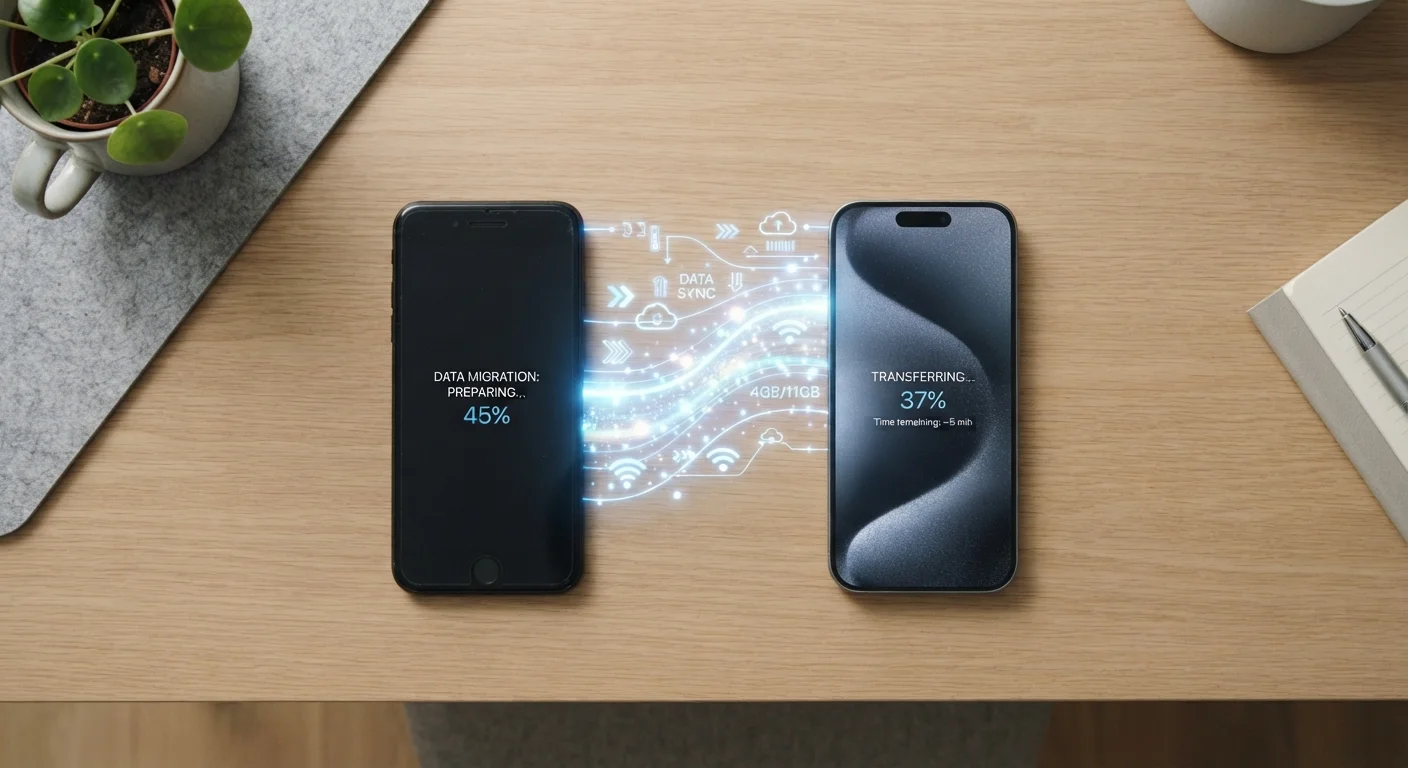
Key Takeaways
- Back up your old phone to the cloud or a computer before starting the transfer process.
- Both Android and iPhone offer built-in migration tools that handle most data automatically.
- App data, authenticator apps, and payment settings often require manual reconfiguration.
- Verify all critical data has transferred before wiping or selling your old device.
- Two-factor authentication accounts need special attention during any phone switch.
What you will need
Why Phone Transfers Go Wrong
Switching phones is one of those tasks that sounds straightforward but routinely catches people off guard. The most common points of failure aren't dramatic technical failures — they're oversights: a backup that wasn't current, an authenticator app that wasn't migrated, or app-specific data that doesn't sync to the cloud. Understanding where the gaps are helps you close them before they become problems.
Platform matters significantly here. Moving within the same ecosystem — iPhone to iPhone, or Android to Android — is reliably smooth because the backup and restore systems are designed end-to-end. Crossing platforms introduces friction, particularly around messaging history and app data, where compatibility is limited by design. If you're making a cross-platform jump, set realistic expectations and prioritize your most critical data categories.
For a broader look at keeping your device safe through transitions and beyond, see our guide to keeping your phone secure without making it harder to use.
What you will need
What You'll Need Before You Begin
A successful transfer depends less on technical skill and more on preparation. Gather the tools below before starting, and confirm your backup is current — ideally taken within the past 24 hours. If you're also setting up a wearable like a smartwatch on the new device, our guide to pairing and syncing wearables across devices walks through that process separately.
Google Account / Google One Backup
Backs up contacts, app data, call history, and settings on Android devices to the cloud.
Apple iCloud
Creates a full encrypted backup of iPhone data including photos, messages, and app data.
Phone manufacturer transfer app (e.g., Move to iOS, Smart Switch)
Handles direct device-to-device transfer for specific platforms or cross-platform moves.
USB-C or Lightning cable
Enables wired transfers between devices, which are generally faster and more reliable than wireless.
Back up your old phone completely
Before touching your new device, create a full backup of your old phone. On Android, go to Settings → System → Backup and confirm that Google Backup is enabled and up to date. On iPhone, go to Settings → [your name] → iCloud → iCloud Backup and tap Back Up Now. Wait for the backup to complete — this is your safety net if anything goes wrong.
Choose your transfer method
Most platforms offer a built-in migration path. Android to Android transfers work through Google's restore flow during setup, or via manufacturer apps like Samsung Smart Switch. iPhone to iPhone uses the Quick Start feature — hold both phones near each other and follow the prompts. Switching between platforms (Android to iPhone or vice versa) requires a dedicated app: Apple's Move to iOS handles iPhone-bound transfers; Smart Switch can pull data from an iPhone to a Samsung device.
Transfer contacts, photos, and messages
During the new phone's setup wizard, select the option to restore from your backup or transfer from your old device. Follow the on-screen instructions carefully. Contacts synced to Google or iCloud transfer automatically. Photos stored in the cloud will re-download once you sign in. Text messages transfer natively on iPhone via iCloud backup; on Android, Google Messages backs up SMS, though cross-platform message transfer is limited.
Reinstall and reconfigure your apps
Your app list transfers, but individual app data varies. On Android, many apps restore their data automatically via Google Play if the developer has enabled backups. On iPhone, App Store apps restore via iCloud backup. After signing in, open each key app and confirm it's functioning — especially banking, email, and productivity tools. Review your home screen layout and rebuild any widgets or shortcuts that didn't carry over.
Reconfigure two-factor authentication and payment apps
This is the step most people overlook. Authenticator apps like Google Authenticator or Authy store codes locally — they do not transfer automatically with a backup. Before switching, transfer or export your authenticator entries using the app's built-in migration tool. Also reconfigure any mobile payment methods (Apple Pay, Google Pay) and re-add your cards. Digital wallets must be set up fresh on new hardware for security reasons.
Verify everything before retiring your old phone
Spend at least one full day using only your new phone before doing anything with the old one. Check that all apps are signed in, contacts are complete, photos are accessible, and notifications are arriving. Test calling, messaging, and any work apps. Once you're confident everything is intact, you can safely perform a factory reset on your old device before trading it in or passing it on.
After the Transfer: What to Check
Once the main transfer is complete, a few minutes of methodical verification can prevent headaches later. Open your contacts app and scroll through to confirm the list is complete. Check your photo library and confirm your most recent shots are present. Open your email clients and ensure they're pulling in new mail. If you use a password manager, confirm it's active and accessible.
Security settings on your new device should also be reviewed. Set up a strong screen lock, confirm biometric authentication is working, and review which apps have access to your location, camera, and microphone. These permissions don't always carry over with a backup and are worth setting intentionally on a fresh device. New to building these habits? Our first-time smartphone owner's guide covers foundational setup in detail.
Don't Wipe Your Old Phone Too Soon
Factory resetting your old device before fully verifying the transfer is the most common — and most regrettable — mistake people make when switching phones. Give yourself at least 24–48 hours of active use on the new device before erasing anything. Once a factory reset is performed, locally stored data that wasn't backed up is generally unrecoverable.