

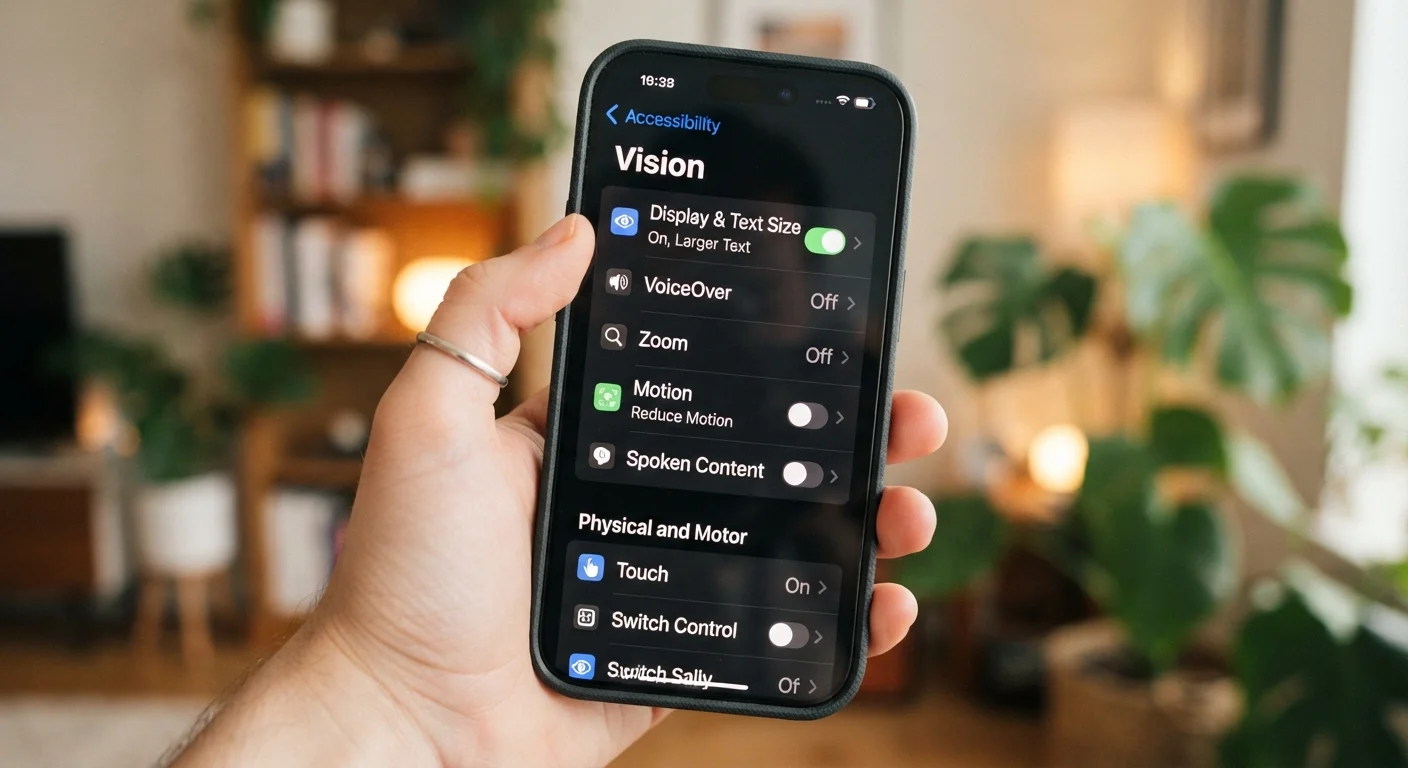
Key Takeaways
- Both iOS and Android include comprehensive accessibility features available at no extra cost.
- Text size, display contrast, and color filters can dramatically reduce eye strain for everyday users.
- Voice control features allow hands-free operation of nearly every smartphone function.
- Accessibility tools designed for disabilities often improve usability for all users.
- Most accessibility settings are found in a dedicated menu under your device's main Settings app.
Built-In Tools You May Have Never Opened
Every modern smartphone ships with a dedicated Accessibility section buried inside Settings — and most users never explore it. That's a missed opportunity. These aren't niche features for edge-case scenarios; they're practical tools that address real friction points in everyday phone use: text that's too small, audio that's too quiet, interfaces that are hard to navigate one-handed.
Accessibility features were designed with specific disabilities in mind, but their practical benefits extend well beyond that original intent. Larger text helps anyone reading in bright sunlight. Live captions help anyone watching a video in a quiet room. Voice control helps anyone with their hands full. The differences between Android and iOS extend to how each platform organizes and labels these tools, but both ecosystems offer a comparable depth of features.
Accessibility Features Work Across the Whole OS
The accessibility settings described here apply system-wide — they affect the home screen, built-in apps, and most third-party apps simultaneously. You don't need to configure them separately for each application. Individual apps may also offer their own display or font settings on top of system-level controls, giving you even more flexibility.
Seven Accessibility Features Worth Turning On
Display Text Size and Bold Text
Adjusting text size is one of the most immediately impactful accessibility changes you can make. Both iOS and Android allow you to scale text independently of the overall display size, so you're not stuck with the factory default. Bold text is a companion setting that increases character weight without changing layout, making thin fonts far easier to read in bright light or on glossy screens.
These settings live under Settings > Accessibility > Display & Text Size (iOS) or Settings > Accessibility > Font Size (Android). Larger text is especially helpful outdoors, where glare competes with screen brightness.
Scaling text size costs nothing and delivers immediate readability gains for nearly every user.
Screen Readers and Text-to-Speech
Screen readers — VoiceOver on iOS and TalkBack on Android — read on-screen content aloud, enabling navigation through tap, swipe, and gesture. While these tools are essential for users with vision impairments, they're also useful for anyone who wants to listen to notifications or text while multitasking.
Separate from full screen readers, text-to-speech engines let you highlight any block of text and have it read aloud. This is handy for long articles, dense emails, or situations where looking at a screen isn't practical — driving hands-free via a car mount, for instance.
Text-to-speech lets you consume written content without looking at the screen at all.
Voice Control and Voice Access
Voice Control (iOS) and Voice Access (Android) go well beyond asking a voice assistant to set a timer. These features let you operate your entire device — tap buttons, scroll pages, open apps, and type — using spoken commands. They're designed primarily for users with motor impairments, but they're genuinely useful any time your hands are occupied.
Unlike standard voice assistants, which respond to narrow command formats, Voice Control understands conversational phrasing and displays numbered labels over on-screen elements so you can say "tap 4" to interact precisely. See our guide to voice assistants for a broader look at what voice technology handles well — and where it still falls short.
Voice Control can replace nearly every touch interaction, making hands-free phone use genuinely practical.
Color Filters and High-Contrast Mode
Roughly 8% of men and 0.5% of women have some form of color vision deficiency, according to broadly cited optometry research. Color filters on smartphones can remap screen colors to account for red-green or blue-yellow deficiencies, making apps and interfaces significantly more readable. These filters can be toggled on and off quickly via an Accessibility Shortcut, so they don't have to be a permanent change.
High-contrast mode — available on both platforms — sharpens the distinction between text and background, which helps in low-light environments and reduces eye fatigue during extended use. On iOS, Increase Contrast and Reduce Transparency work together to eliminate visual ambiguity in the interface.
Color filters benefit far more users than just those with diagnosed color vision deficiencies.
Switch Control and Assistive Touch
Switch Control (iOS) and Switch Access (Android) allow users to operate the device using external switches — physical buttons, facial gestures, or even breath sensors — rather than direct touchscreen interaction. Assistive Touch (iOS) creates a floating on-screen menu that replicates hardware button functions, useful if physical buttons are worn or difficult to press.
These features represent the deeper end of the accessibility toolkit, but they illustrate how thoroughly modern mobile operating systems have been designed with physical diversity in mind. Even if you never use Switch Control personally, its presence reflects engineering decisions — like gesture-based navigation — that improve the interface for everyone. For a full comparison of how iOS and Android approach these underlying design choices, see our overview of Android vs. iOS.
Assistive Touch is a practical fix when hardware buttons become unreliable, regardless of disability status.
Hearing Accommodations and Live Captions
Both major platforms include sound recognition features that alert users — through vibration or visual cues — to specific environmental sounds like doorbells, smoke alarms, or a baby crying. This is essential for users who are deaf or hard of hearing, but equally practical for anyone wearing headphones in a busy environment.
Live Captions, available on Android and iOS, generate real-time on-screen captions for any audio playing on the device — calls, videos, podcasts, and more. Captions are processed on-device, meaning no audio is sent to the cloud. This feature works in noisy environments, quiet offices where speakers aren't an option, and for content that doesn't include built-in subtitles.
Live Captions work on any audio source without requiring an internet connection or cloud processing.
Magnifier and Display Zoom
The Magnifier app (iOS) and Magnification feature (Android) turn the rear camera into a digital magnifying glass — useful for reading small print on labels, menus, or instruction sheets. On iOS, the Magnifier supports added filters, brightness adjustment, and freezing a frame so you can inspect it without holding the phone steady.
Display Zoom differs from text scaling: it enlarges the entire interface — icons, navigation bars, and all — making everything on screen physically larger. Combined with text size adjustments, these tools give granular control over how much visual information the screen presents at once, which benefits users across a wide range of vision abilities.
The Magnifier feature effectively turns your smartphone into a pocket-sized reading aid.
Use Accessibility Shortcuts for Quick Toggling
Both iOS and Android support accessibility shortcuts that let you turn specific features on or off with a triple-click of the side or home button. Set up your most-used features — color filters, magnifier, or Voice Control — as shortcuts so you can activate them in seconds without navigating through Settings menus.
Getting the Most Out of What's Already There
The accessibility settings on your smartphone aren't a static checklist — they're a toolkit you can adapt as your needs change. If you travel frequently, a combination of Live Captions and Sound Recognition can help you stay aware in unfamiliar environments. If you're managing a device for an older family member, Display Zoom and bold text can dramatically reduce frustration without requiring new hardware.
Exploring these settings also reinforces how much control you actually have over your device's behavior. The same instinct that leads you to review your privacy settings or manage your apps more deliberately applies here: knowing what your phone can do means you can make it work for you, not the other way around. Spend ten minutes in the Accessibility menu — the features you find may change how you use your device every day.