

Key Takeaways
- Most smartphones grant apps far more access than they actually need by default.
- Location data is one of the most widely shared and least scrutinized types of personal information.
- Reviewing privacy settings periodically — not just once — keeps your data exposure in check.
- Both Android and iOS offer granular controls that go well beyond the default setup.
- Disabling ad tracking and limiting data sharing rarely affects core app functionality.
Your phone knows more than you might expect
Smartphones are extraordinarily capable devices, and that capability comes with a significant data footprint. Every app installed, every permission granted, and every default setting left unchanged shapes what your phone shares — with app developers, ad networks, and platform providers. Most users set up their phones once and never revisit those choices.
The good news is that both major mobile platforms have expanded their privacy controls substantially in recent years. The settings exist; they're just not always easy to find or well-publicized. This list covers seven controls that deliver real, meaningful privacy improvements — none of which require technical expertise to apply. Privacy on your phone extends beyond the device itself: if you use wearables, it's also worth understanding what data your wearable devices collect and share.
Settings Vary by OS Version and Device
The exact location of privacy controls differs between iOS and Android versions, and sometimes between device manufacturers running Android. If the paths described here don't match your device exactly, use the Settings search function and type keywords like 'permissions,' 'location,' or 'tracking' to find the relevant controls quickly.
Seven privacy settings worth adjusting now
Audit app permissions regularly
Every app you install requests access to parts of your phone — camera, microphone, contacts, calendar, and more. Many of these requests are legitimate, but some apps ask for access well beyond what their core function requires. Both Android and iOS let you review and revoke these permissions individually without uninstalling the app.
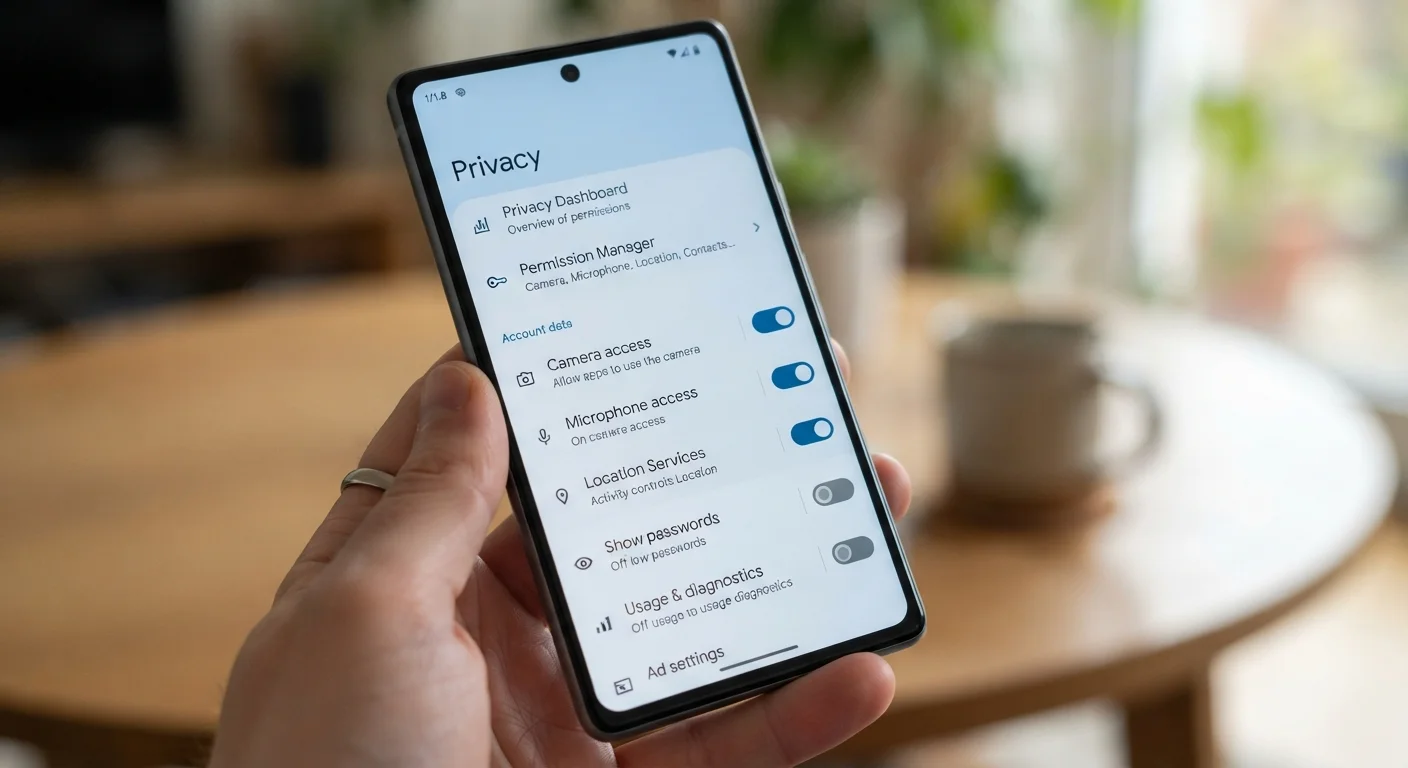
On iOS, go to Settings > Privacy & Security and browse by permission type. On Android, find Settings > Privacy > Permission Manager. Look particularly at microphone, camera, and contacts — and question any app that holds access it has no clear reason to need.
Some apps hold access to your microphone or contacts long after you've stopped using them.
Switch location access to 'While Using' only
Location tracking is among the most commercially valuable data your phone generates. Many apps default to Always On location access, meaning they can log your position even when running in the background. For most apps — maps, weather, food delivery — While Using or Only This Time access is entirely sufficient.
Check your location settings carefully. On both major platforms, you can see which apps have requested continuous location access and dial that back without losing core functionality. A navigation app doesn't need to know where you are while you're not navigating.
Most apps function perfectly well with 'While Using' location access rather than continuous background tracking.
Disable personalized ad tracking
Your phone carries an advertising identifier — a code that ad networks use to build a profile of your interests and behavior across apps and websites. Both iOS and Android allow you to reset this ID or opt out of ad personalization entirely.
On iOS, go to Settings > Privacy & Security > Tracking and disable Allow Apps to Request to Track. On Android, look under Settings > Privacy > Ads to delete your advertising ID. Disabling this doesn't eliminate ads, but it does break the cross-app tracking chain that fuels personalized targeting.
Resetting or deleting your advertising ID disrupts the cross-app data trail that powers personalized ads.
Limit what appears on your lock screen
Notifications on your lock screen can expose sensitive messages, email previews, and app alerts to anyone who glances at your phone. Most users leave these at the default, which often shows full message content before the device is unlocked.
You can configure notifications to show only that a message arrived — not its content — until you authenticate. On iOS, navigate to Settings > Notifications, select an app, and change Show Previews to When Unlocked. Android offers similar per-app controls under Settings > Notifications > App Notifications. This is especially worth doing for messaging, banking, and email apps.
Showing notification previews only after unlock prevents sensitive content from being visible to passersby.
Review your clipboard and photo library access
Apps can read your clipboard — the temporary buffer that holds copied text — which may contain passwords, addresses, or account numbers. iOS now alerts you when an app accesses clipboard content; Android offers similar transparency in newer versions. If an app has no clear reason to read your clipboard, that's a signal worth noting.
Similarly, photo library access can expose far more than an app needs. Instead of granting access to your entire photo library, both platforms let you select specific photos to share with individual apps. This is a meaningful privacy gain with no practical downside for most use cases.
Granting apps access to selected photos rather than your full library limits unnecessary data exposure significantly.
Use a strong lock screen with biometrics as backup
Physical access to an unlocked phone bypasses virtually every other privacy control. A six-digit PIN offers substantially more protection than a four-digit one, and an alphanumeric passcode raises that bar further. Biometrics — fingerprint or face recognition — are convenient and add a practical layer of protection, but they should supplement a strong passcode, not replace it.
For a broader look at securing your device without sacrificing convenience, see practical mobile security strategies that balance protection with day-to-day usability.
A strong passcode is the foundation of device security — biometrics are a useful addition, not a replacement.
Check what data backs up to the cloud — and where it goes
Automatic cloud backup is convenient, but it means your photos, messages, contacts, and app data may be stored on remote servers subject to a service provider's own data practices and legal obligations. Understanding what syncs — and to where — gives you more deliberate control.
Review your cloud backup settings and consider whether every category of data genuinely needs to be backed up remotely. For a clear breakdown of how on-device storage and cloud services compare, the guide on smartphone storage and cloud options is a useful reference.
Not every category of data needs to sync to the cloud — reviewing backup settings is a simple but overlooked step.
Set a Privacy Review Reminder
Privacy settings aren't a one-time task. Apps update their permission requests, new apps accumulate, and platform options change with OS updates. Setting a calendar reminder every three to six months to run through your permissions and location settings is one of the most practical habits you can build. It takes less than fifteen minutes and gives you an ongoing, accurate picture of what your device is sharing.
Small adjustments, lasting impact
None of these changes require you to become a privacy expert or give up the features you rely on. They represent a more deliberate relationship with your device — one where you decide what gets shared, rather than accepting whatever defaults were chosen for you. For a fuller picture of managing everything on your device, the complete guide to managing apps covers permissions, storage, and organization in one place.
If you're planning to hand off an old device, these privacy principles apply there too — especially wiping your data thoroughly before transfer. See the pre-trade-in checklist for the steps that matter most before letting your old phone go.